

Self-Hosting: Run Your Own LLM with DiscoGen
Run your own LLM for DiscoGen on your hardware. This guide sets up a proof-of-concept inference stack on a single GPU using Docker: Ollama for inference, LiteLLM as an API proxy, and Cloudflared for tunnel access.
Why self-host?
Section titled “Why self-host?”| Cloud LLM (OpenAI, Anthropic) | Self-hosted | |
|---|---|---|
| Cost | Pay per token. Scales linearly with volume. | Fixed GPU cost. Process unlimited tokens for a flat hourly rate. |
| Data privacy | Prompts and domain data sent to third-party APIs | Everything stays on your network |
| Latency | Depends on provider load and rate limits | Dedicated GPU, no queue, no throttling |
| Model control | Limited to provider’s model catalog | Run any open-source model, swap anytime |
Prerequisites
Section titled “Prerequisites”- GPU: NVIDIA with 96GB+ VRAM recommended (16GB minimum for smaller models). Don’t have one? Rent on-demand from Lambda (used in this guide), RunPod, Vast.ai, or CoreWeave. Most providers come with NVIDIA drivers pre-installed.
- Docker with nvidia-container-toolkit. The setup script installs both if missing.
Pick a model
Section titled “Pick a model”The setup script detects your VRAM and offers these defaults:
| VRAM | Model | |
|---|---|---|
| 80GB+ | Llama 4 Scout | MoE, 17B active params. Best single-GPU option for structured output |
| 40-80GB | Llama 3.1 70B | Dense 70B. Reliable JSON generation, well-tested |
| 20-40GB | Qwen3 32B | Comparable to 72B models at half the VRAM |
| 8-20GB | Llama 3.1 8B | Lightweight. Good for testing the pipeline |
Or select Custom model to enter any model name from ollama.com/library.
Setting up
Section titled “Setting up”mkdir discolike-self-hosting && cd discolike-self-hostingcurl -LO https://api.discolike.com/v1/docs/self-hosting/docker-compose.ymlcurl -LO https://api.discolike.com/v1/docs/self-hosting/setup.shchmod +x setup.sh && ./setup.shThe script detects your GPU and lets you pick a model that fits:
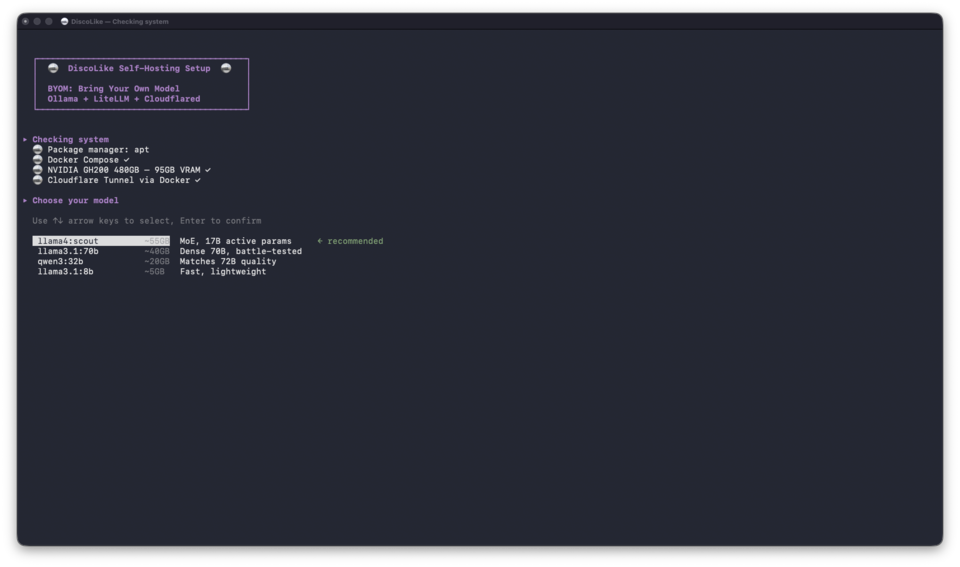
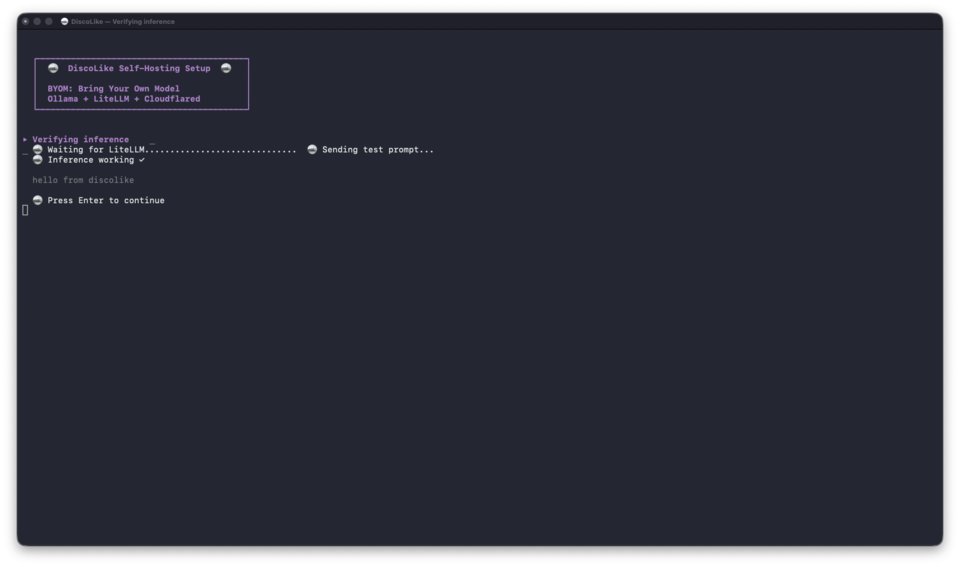
It then generates API keys, starts the Docker stack, pulls the model (this can take a while depending on your connection), and verifies inference end-to-end:
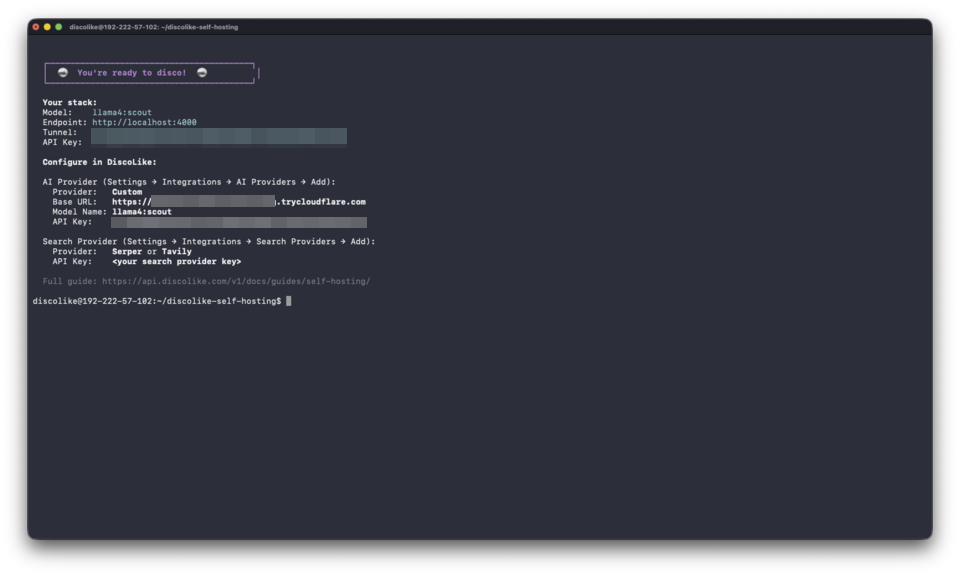
When complete, you get your tunnel URL, model name, and API key:
Connecting to DiscoLike
Section titled “Connecting to DiscoLike”Adding your model
Section titled “Adding your model”-
Go to Settings → Integrations → AI Providers → Add
-
Fill in the form:
Field Value Provider Bring Your Own Model Integration Name e.g. llama4_scoutBase URL Your tunnel URL, without the /v1suffixModel Name openai/llama4:scoutAPI Key The LiteLLM key from setup 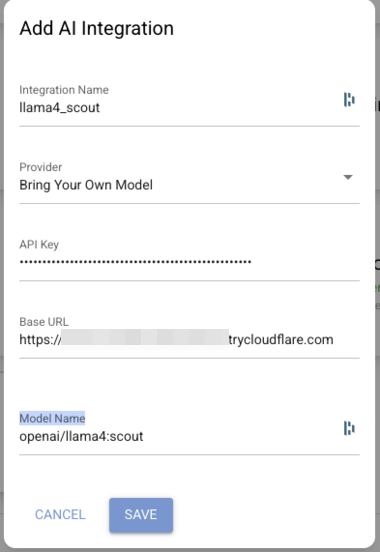
-
Click Save. DiscoLike sends a test prompt to validate the connection.
Adding web search (optional)
Section titled “Adding web search (optional)”Serper gives DiscoGen access to live web results alongside your domain data. Useful for enriching companies with recent news, funding rounds, or hiring signals.
-
Grab an API key from serper.dev. A paid plan is recommended as the free tier has strict rate limits that will slow down DiscoGen batch processing.
-
Go to Settings → Integrations → Search Providers → Add
Field Value Provider Serper Integration Name e.g. serperAPI Key Your Serper key Search Model serper/search(auto-populated)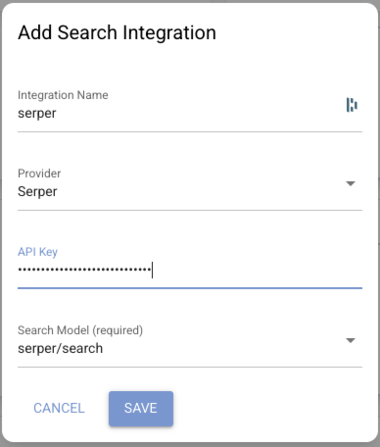
-
Click Save. DiscoLike validates with a test search.
Running DiscoGen
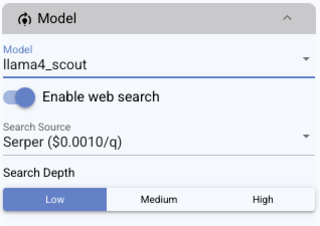
Section titled “Running DiscoGen”Open DiscoGen and select your self-hosted model from the Model dropdown. If you added Serper, toggle Enable web search, pick a Search Depth, and select your provider under Search Source.
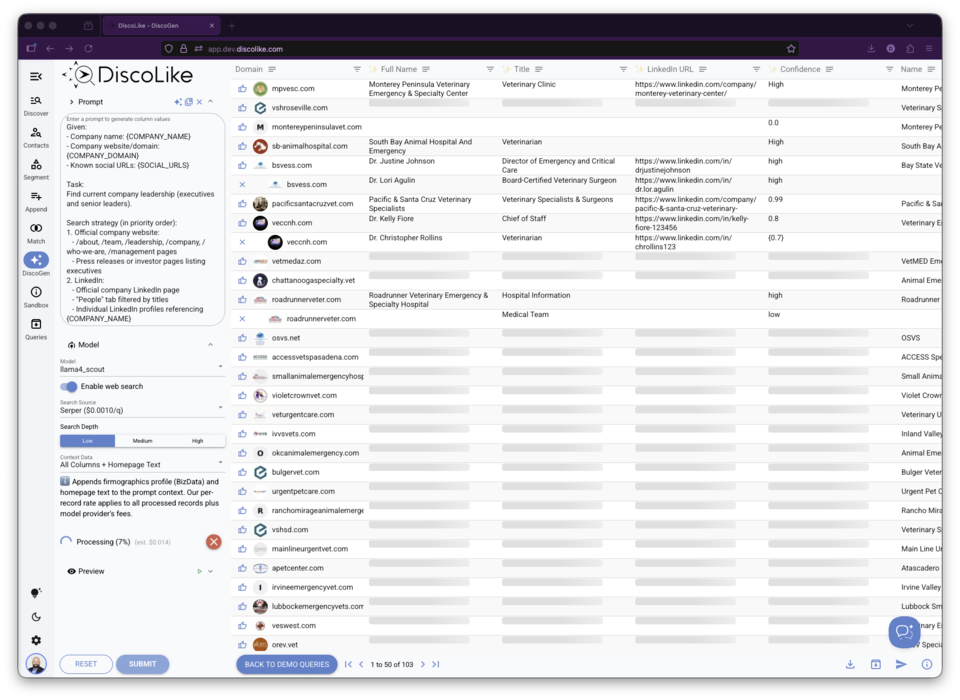
Hit Submit. DiscoGen sends each domain through your model and streams results into the table.
Setting up a named tunnel
Section titled “Setting up a named tunnel”For a persistent subdomain that survives restarts, replace the quick tunnel with a named one:
cloudflared tunnel logincloudflared tunnel create discolike-llmcloudflared tunnel route dns discolike-llm llm.yourdomain.comcloudflared tunnel run --url http://localhost:4000 discolike-llmThen update your Base URL in the DiscoLike integration to https://llm.yourdomain.com.
Managing your stack
Section titled “Managing your stack”docker compose up -d # Start everythingdocker compose down # Stop everythingdocker compose logs -f # Follow logsdocker compose logs cloudflared # Get current tunnel URLdocker exec ollama ollama list # List installed modelsdocker exec ollama ollama pull qwen3:32b # Pull another modelSwitching models? Edit litellm-config.yaml, run docker compose restart litellm, and update the Model Name in DiscoLike (with the openai/ prefix).
Troubleshooting
Section titled “Troubleshooting”| Symptom | Fix |
|---|---|
| Validation fails | Model name must start with openai/. Base URL must not end with /v1 |
| Model won’t load | nvidia-smi. If VRAM is full, re-run ./setup.sh and pick a smaller model |
| LiteLLM returns 500 | docker compose logs litellm --tail 50. Usually Ollama is still loading |
| Tunnel unreachable | docker compose logs cloudflared. If the URL changed, update DiscoLike |
Quick validation test from your terminal:
curl https://your-tunnel-url/v1/chat/completions \ -H "Authorization: Bearer YOUR_API_KEY" \ -H "Content-Type: application/json" \ -d '{"model": "llama4:scout", "messages": [{"role": "user", "content": "hi"}], "max_tokens": 5}'If this returns a response, the stack is working. Check your DiscoLike configuration if validation still fails.